

How Duplicate Tags Are Quietly Destroying Your Conversion Data
Your conversion numbers look strong. Your cost-per-acquisition seems reasonable. Your Google Ads account reports a healthy ROAS. Everything appears to be working.
It might not be.
In tracking audits, one of the most damaging problems we find hiding beneath apparently healthy-looking dashboards is overtagging. It inflates your numbers. It poisons your attribution data. It feeds false signals to Smart Bidding algorithms. And because it tends to make metrics look better than reality, it often goes undetected for months.
This post explains what overtagging is, why it happens, how to find it, and what to do about it.
What Is Overtagging?
Overtagging happens when multiple versions of the same pixel or tag are firing on your website at the same time. The result is that a single user action, one purchase, one form submission, one page view, gets counted more than once.
The industry typically refers to this as “double tagging” or “duplicate tags” when two instances of the same tag are present. We use the term overtagging because the problem is rarely limited to just two versions. In accounts we audit regularly, we find three, four, or even five instances of the same conversion tag firing on a single event.
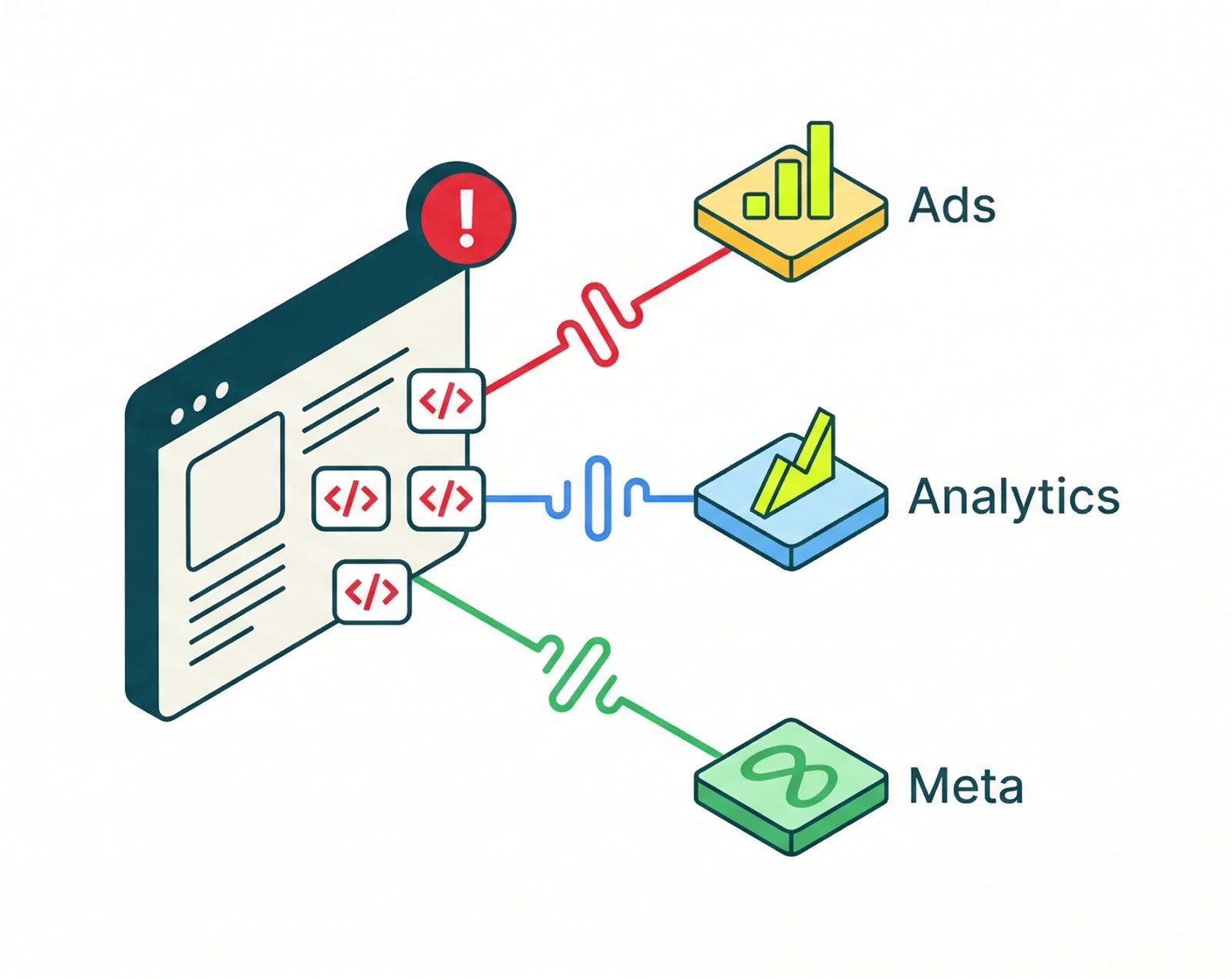
It sounds like a niche technical issue. The effects are enormous. Inflated conversion numbers. Destroyed attribution data. Marketing decisions made on completely false information.
The reason it’s so dangerous is that it’s invisible to most marketers. When your conversion numbers look high, it’s tempting to assume things are working. You’re not going to naturally think “maybe my pixel is firing three times per conversion.” So instead, teams try to fix budget allocation, ad creative, and audience targeting, treating symptoms while the core problem goes completely undetected.
Why Overtagging Is So Common
Understanding why this happens is the first step toward preventing it. Overtagging is almost never intentional. It accumulates gradually, usually across a series of well-meaning but uncoordinated decisions.
- Multiple teams working on the same site. When an in-house team, a previous agency, a current agency, and a developer have all touched the tracking setup at different points, tags get layered on top of each other. The incoming agency installs their version. Nobody removes the old version.
- GTM plus hardcoded scripts. This is one of the most common causes. A GA4 tag or Google Ads conversion snippet gets added directly to the site’s HTML. Later, someone sets up Google Tag Manager and configures the same tag inside GTM. Now the tag fires twice on every relevant page: once from the hardcoded script and once from GTM.
- WordPress plugins. WordPress makes it especially easy to create duplicate tracking. A developer installs a plugin like Google Site Kit or a theme that includes GA4. Meanwhile, GTM is also running on the same site with its own GA4 configuration tag. Neither person knew the other had already set it up.
- Migrations that never finished. When companies move from Universal Analytics to GA4, from one ad platform to another, or from one agency’s tracking architecture to a new one, the old implementation often stays in place long after the new one is running. The migration is treated as complete once new data starts flowing. Nobody verifies that the old data stopped.
- GTM container clutter over time. Inside GTM, tags accumulate. A “GA4 Config” tag, a “GA4 Configuration – New” tag, and a “GA4 – Final Version” tag all firing on every page load. Nobody knows which one is live. Nobody wants to delete something in case it breaks something else. All three keep firing.
The Real Damage Overtagging Causes
Knowing your conversions are inflated sounds like a minor data hygiene issue. It is not. The downstream consequences affect every layer of your marketing operation.
- Smart Bidding trains on bad data. Google Ads uses your conversion data to optimize bids automatically. If your account is reporting 300 conversions per month when the real number is 100, Smart Bidding builds its model around 300. It allocates budget, adjusts bids, and targets audiences based on a pattern that doesn’t reflect reality. The algorithm is working correctly. It is just working with wrong inputs.
- Attribution becomes meaningless. When the same conversion event fires multiple times, credit gets assigned multiple times. You cannot reliably determine which campaign, ad group, or keyword drove actual results. You might pause a campaign that is genuinely performing well because the attribution picture is so distorted that nothing looks clear.
- Cost-per-conversion is artificially low. A campaign that appears to be generating leads at $25 per conversion might actually be generating them at $75. Decisions about scaling, pausing, or shifting budget are made against a benchmark that does not exist.
- Reporting to stakeholders is based on fiction. If you are presenting monthly performance reports to a client or internal leadership using inflated conversion counts, every conclusion drawn from those reports is suspect. Overtagging doesn’t just corrupt your analytics. It corrupts your decision-making at every level.
How to Detect Overtagging
The first thing any honest conversion tracking audit should do is check for overtagging. Here are the tools and methods to use.
- Google Tag Assistant: The Tag Assistant browser extension shows you every Google tag that fires on a given page, including how many times each tag fires and whether duplicate instances are detected. Install it, load your site, and check your key conversion pages. If you see the same tag firing twice, you have overtagging.
- GTM Preview Mode: Inside Google Tag Manager, click the Preview button in the top right of the workspace. This opens Tag Manager’s debug view, which shows you in real time exactly which tags fire as you navigate your site. On each page, check the “Tags Fired” panel. If you see multiple versions of the same GA4 configuration tag or the same Google Ads conversion tag, those duplicates need to be resolved.
- Your browser’s developer console: Open Chrome DevTools, go to the Network tab, and filter by the relevant domain (google-analytics.com, googletagmanager.com, or the pixel domain you’re checking). Load your site and trigger a conversion event. Count how many requests fire to the same endpoint. More than one request for the same event is a signal worth investigating.
- The GA4 Exploration report method: Inside GA4, create an Exploration report and look at the event count per user for each conversion event. For most non-transactional conversions (form submissions, lead events, demo requests), the event count per user should be close to 1. If you are regularly seeing an event count per user of 2 or higher for events that should only happen once per session, you likely have duplicate firing.
- Check the site source code: Open your browser’s developer tools, go to Sources, and search (Ctrl+Shift+F on Windows, Command+Shift+F on Mac) for your GA4 Measurement ID or Google Ads Conversion ID. If the same ID appears more than once on a page, or if it appears both in a hardcoded script and inside GTM, you have found a root cause.
How to Fix Overtagging
Once you have identified where duplicate tags are coming from, the fix requires discipline. Here is how to approach it correctly.
- Establish GTM as your single source of truth: All tracking tags should live in Google Tag Manager. Nothing should be hardcoded directly in the site’s HTML unless there is a specific technical reason. If you find a GA4 snippet or Google Ads tag hardcoded in the site, check whether GTM is also firing the same tag. If it is, remove the hardcoded version and manage everything through GTM.
- Audit and clean the GTM container. Open your GTM container and do a full tag inventory. Use Preview Mode to identify which tags are actually firing and which are paused or redundant. If you find multiple versions of the same configuration tag, keep the one that is named clearly and verified as correct. Delete or archive the others. If you are afraid to delete a tag because you don’t know what it does, that is itself a sign that your container needs a governance policy.
- Check and remove platform plugins. If your site runs on WordPress, audit every active plugin for tracking functionality. Google Site Kit, MonsterInsights, and many theme plugins all install GA4 tracking automatically. If GTM is already managing your GA4 tag, these plugins are creating duplicate implementations. Disable or reconfigure them so they are not independently firing the same tags.
- Implement transaction ID deduplication for purchase events. Even with a clean tag setup, thank-you pages and confirmation pages can load multiple times due to refreshes or navigation behavior. For purchase conversions, pass a unique transaction ID with each conversion event. Google automatically deduplicates conversion events that share the same transaction ID, so each purchase is counted only once even if the confirmation page reloads.
- Set conversion counting to “Once per session” for non-transactional events. For conversions like form submissions, ebook downloads, or demo requests, change the counting method in GA4 from “Once per event” to “Once per session.” This prevents a single session from being credited with the same non-transactional conversion multiple times, which is usually the correct behavior for these event types.
How to Prevent Overtagging Going Forward
Finding and fixing overtagging is not a one-time task. Without a system in place, the problem returns. Tracking setups grow organically over time and without oversight, duplication is the default outcome.
A few practices that make a significant difference:
- Run a tag audit before any new tracking implementation. Before adding any new tag, pixel, or analytics tool, document what is already in place. A simple spreadsheet listing every active tag, its purpose, its trigger, and who installed it costs almost nothing to maintain and prevents the kind of container clutter that takes hours to untangle later.
- Enforce GTM as the only path to production. Any new pixel or conversion tag should go through GTM, full stop. If an external platform requires a tag, it goes in the GTM container. If a developer wants to add tracking code directly to the site, that request gets evaluated against what is already running in GTM first.
- Schedule quarterly audits. Tag setups drift. Platforms update their requirements. Agencies change. A quarterly review of your GTM container and a quick Tag Assistant check of your key conversion pages catches new issues before they compound into a months-long data problem.
All tracking tags should live in Google Tag Manager. Nothing should be hardcoded directly in the site's HTML unless there is a specific technical reason for it. If any tag exists in both places, the hardcoded version needs to go.
How to do it
- Check your site's source code for any GA4 Measurement IDs or Google Ads Conversion IDs
- If those same IDs also exist inside your GTM container, the hardcoded version is the duplicate
- Remove hardcoded scripts from the site and let GTM manage all firing going forward
GTM containers accumulate tags over time. It's common to find multiple versions of the same tag with names like "GA4 Config", "GA4 - New", and "GA4 - Final Version" all firing simultaneously. If you're afraid to delete a tag because you don't know what it does, that's itself a sign the container needs a governance policy.
How to do it
- Open GTM and click Preview to enter real-time debug mode
- Navigate through the site and check the "Tags Fired" panel on each key page
- If multiple versions of the same GA4 Config or Ads Conversion tag appear, keep the correctly named one
- Delete or archive all redundant versions
If your site runs on WordPress, installed plugins like Google Site Kit, MonsterInsights, or theme-bundled analytics tools often add their own GA4 or pixel tracking independently of GTM. If GTM is already managing those same tags, every plugin that fires independently is a duplicate source.
How to do it
- Audit your active plugins for any that include analytics or pixel functionality
- Use Google Tag Assistant to confirm whether those plugins are firing the same IDs already in GTM
- Disable the tracking functionality in the plugin, or deactivate the plugin entirely if GTM covers its purpose
Even with a clean tag setup, order confirmation pages can reload due to a browser refresh or back-navigation, which causes the same purchase event to fire twice. Passing a unique transaction ID with each purchase event lets Google automatically ignore duplicate hits for the same order.
How to do it
- Pass a unique
transaction_idparameter with every purchase conversion event - Google will automatically deduplicate conversion events that share the same transaction ID
- Each order should use its own unique order number or ID from your backend
For non-transactional conversions like form submissions, ebook downloads, or demo requests, GA4's default "Once per event" counting method inflates your numbers if duplicate events exist. Switching to "Once per session" ensures a single session is credited with the conversion only once, which is the correct behavior for most lead-generation events.
How to do it
- Go to GA4 Admin, then Key Events (formerly Conversions)
- Click the three-dot menu next to each non-transactional conversion event
- Select "Once per session" as the counting method
- Keep "Once per event" only for purchase and repeat-value events
With these five steps in place, your GTM container is the single source of truth, platform plugins are no longer creating phantom duplicates, and your purchase and lead conversions are counted accurately. Run a quarterly Tag Assistant check to catch drift before it compounds.
How to Prevent Overtagging Going Forward
Finding and fixing overtagging is not a one-time task. Without a system in place, the problem returns. Tracking setups grow organically over time, and without oversight, duplication is the default outcome.
A few practices that make a significant difference:
Run a tag audit before any new tracking implementation. Before adding any new tag, pixel, or analytics tool, document what is already in place. A simple spreadsheet listing every active tag, its purpose, its trigger, and who installed it costs almost nothing to maintain and prevents the kind of container clutter that takes hours to untangle later.
Enforce GTM as the only path to production. Any new pixel or conversion tag should go through GTM, full stop. If an external platform requires a tag, it goes in the GTM container. If a developer wants to add tracking code directly to the site, that request gets evaluated against what is already running in GTM first.
Schedule quarterly audits. Tag setups drift. Platforms update their requirements. Agencies change. A quarterly review of your GTM container and a quick Tag Assistant check of your key conversion pages catches new issues before they compound into a months-long data problem.
Overtagging is when multiple versions of the same tracking pixel or conversion tag are firing simultaneously on a website, causing the same user action to be counted more than once. This leads to inflated conversion data, inaccurate attribution, and poor advertising decisions.
Use Google Tag Assistant to inspect your pages, GTM Preview Mode to see which tags fire in real time, or your browser's developer console to watch network requests. If you see the same tag ID firing more than once for a single user event, you have duplicate tags.
Yes, significantly. Google Ads Smart Bidding relies on your conversion data to optimize campaigns automatically. If your conversion count is inflated due to duplicate tags, Smart Bidding trains on inaccurate signals, which degrades bidding efficiency and makes it harder to evaluate true campaign performance.
Double tagging refers specifically to a situation where the same tag appears in two places, most commonly hardcoded in the site's HTML and also deployed via Google Tag Manager. Overtagging is a broader term covering any situation where the same tag or pixel fires multiple times per event, which can result from two instances or more.
Audit your GTM container and your site's source code for duplicate GA4 or Google Ads tags. Remove any hardcoded versions of tags already managed through GTM. For purchase conversions, implement transaction ID deduplication so Google can automatically ignore duplicate hits. For non-transactional conversions, set the counting method to "Once per session" in GA4.
Attribution model differences account for some gap, but if the discrepancy is large and consistent, overtagging is a likely cause. If the same conversion event fires twice per session, GA4 reports twice the conversions that your CRM records as actual leads or purchases. Check the event count per user in a GA4 Exploration report — a non-transactional event consistently showing 2 or higher is a strong signal.
For purchase events, Google will deduplicate based on a unique transaction_id if you pass one correctly. For other events, deduplication is not automatic. Google's recommendation to "Ignore duplicate instances of on-page configuration" in GA4 tag settings addresses a specific scenario — the same Measurement ID in both a hardcoded script and GTM — but does not resolve all forms of tag duplication.