


Calendly Event Tracker
€1.99
Track Calendly bookings, date selections, and page views in GA4; without writing a single line of code. Import, add your Measurement ID, publish. Done in 10 minutes.


Details
Stop Losing Calendly Conversion Data
If you’ve embedded Calendly on your website, you’ve probably noticed something frustrating: standard GTM click tracking doesn’t work on it. That’s because Calendly loads inside an iframe, which blocks normal DOM-based tracking entirely.
Calendly’s own support team will tell you to use UTM parameters or their native GA4 integration (which requires a paid Calendly plan and only connects to one GA4 property). Meanwhile, every DIY tutorial online asks you to write Custom HTML listener scripts, manually create triggers and variables, and hope you didn’t make a typo somewhere.
This template eliminates all of that.
What You Get
A single GTM container file (.json) that imports directly into your Google Tag Manager workspace. After import, your container will include:
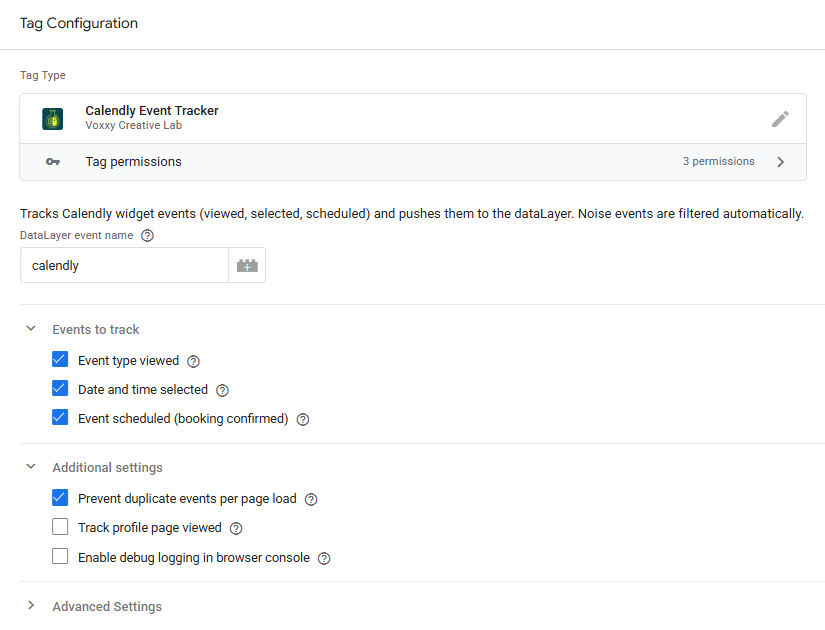
- 1x – Custom Tag Template: The Calendly Event Tracker, purpose-built to listen for Calendly’s postMessage API and push clean events to the dataLayer;
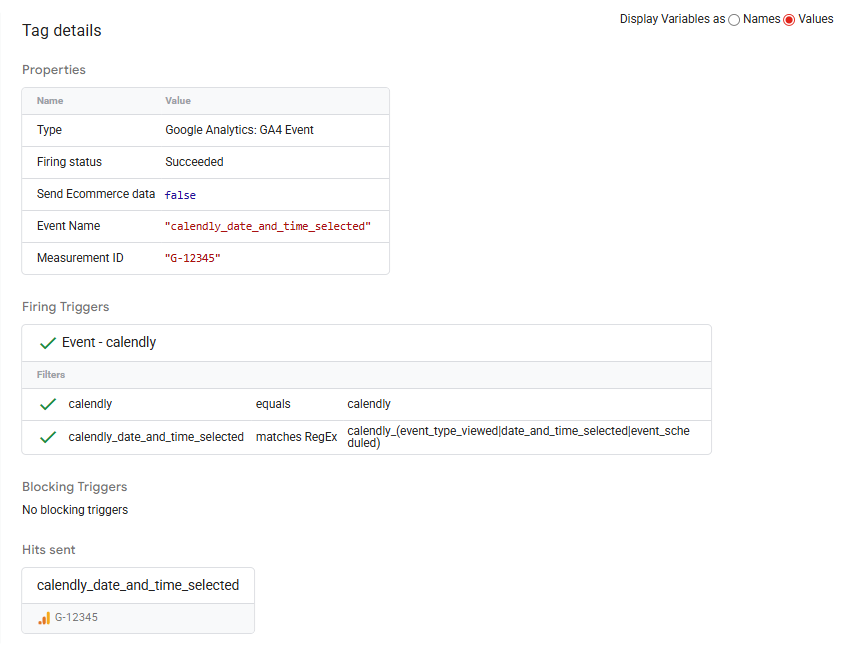
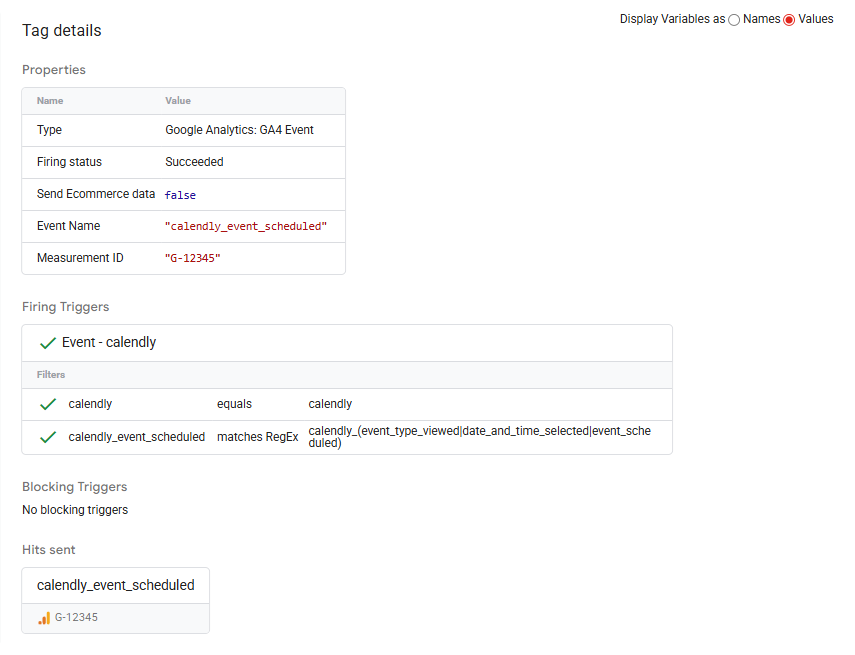
- 1x – GA4 Event Tag: Pre-configured to fire on Calendly interactions and send properly formatted event names to Google Analytics 4;
- 1x – Custom Event Trigger: With regex filtering so only valid Calendly events fire your tags;
- 2x Variables: A dataLayer variable for the raw event name, plus a lookup table that maps Calendly events to clean GA4 event names using Voxxy’s OTTRTA methodology.
| Calendly Interaction | GA4 Event Name |
|---|---|
| 👁 Visitor views your event type | calendly_event_type_viewed |
| 📅 Visitor selects a date and time | calendly_date_and_time_selected |
| ✅ Visitor completes a booking | calendly_event_scheduled |
| 👤 Optional Profile page viewed | Configurable in Advanced Settings |
| 📏 page_height resize noise | ✕ Auto-filtered |
Built-In Deduplication
During a single page load Calendly frequently sends the same postMessage event multiple times, the GTM Calendly-template tracks which events have already fired and prevents duplicate dataLayer pushes, so your GA4 data stays clean without any extra configuration.
How Setup Works
- Import: Go to GTM → Admin → Import Container → Upload the .json file → Choose Merge → Rename conflicting items;
- Add your Measurement ID: Open the GA4 event tag and replace the placeholder G-12345 with your actual GA4 Measurement ID;
- Test & Publish: Use GTM Preview mode to verify events fire, check GA4 DebugView, then hit Submit.
Total setup time: under 10 minutes.
Who This Is For
- Marketing teams running Calendly on lead gen or sales pages;
- Agencies managing client GTM containers that need a reliable, repeatable Calendly tracking solution;
- Solo operators who want accurate booking funnel data without hiring a developer.
Only logged in customers who have purchased this product may leave a review.
Related
Nothing found.